TeamLive
- 4.7
- Rating
- 100.00K
- Installs
- Free
- Price

 Analysis by App-foxy
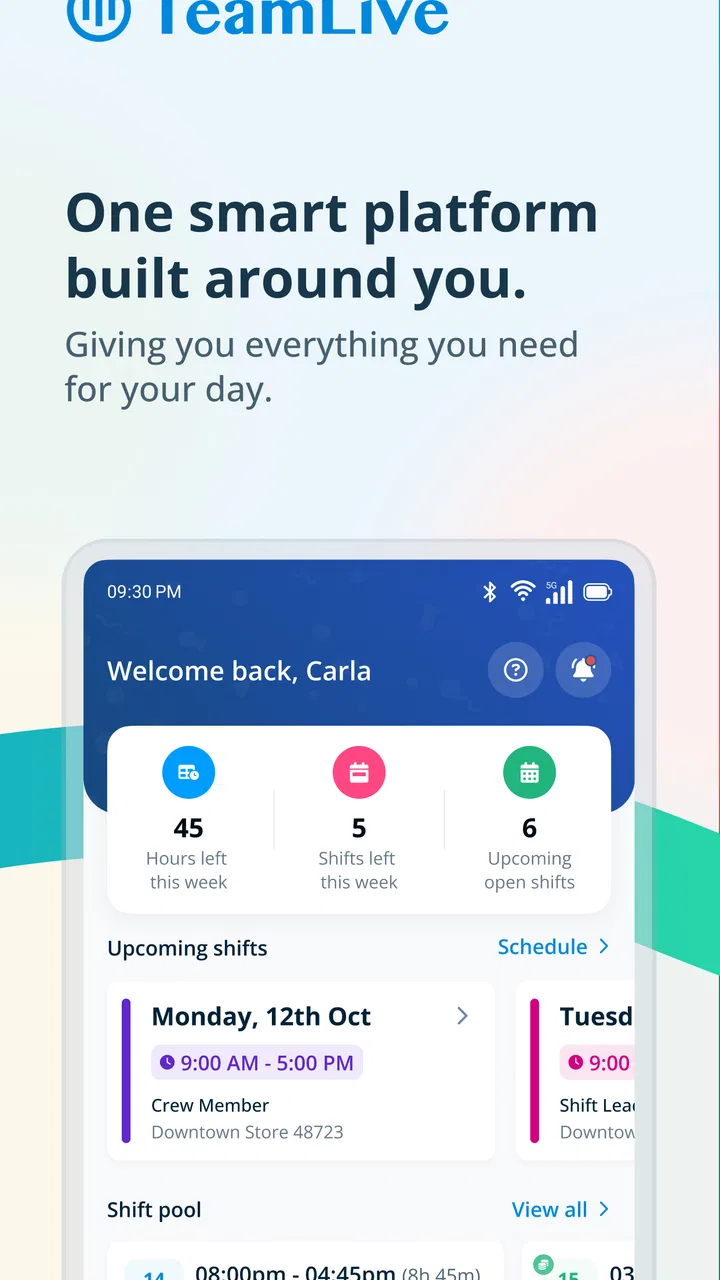
TeamLive is a business app from Harri that brings workplace scheduling and team communication into one place. I found its appeal quite easy to understand: instead of checking a rota in one place and chasing updates through scattered messages, a team can use one shared space for the information that affects a working day.
That sounds simple, but simplicity matters most when people are busy. A staff member usually wants to know when they are working, what has changed, and where to look for an important team message. A manager wants a schedule that people can actually follow without repeatedly answering the same questions. TeamLive is aimed at that practical gap rather than at personal productivity or general chat.
The app is free and suitable for Everyone, which makes it approachable for a mixed workplace where not every employee is especially comfortable with business software. It has passed the point of being an obscure experiment: the Android listing shows over 100 thousand installs, a 4.6 average from around 5.2 thousand ratings, and more than 600 written reviews. Those figures do not replace personal testing, but they do suggest that the basic idea works for a substantial group of users.
You May Also Like

 Blood Strike: 2.5 Anniversary
Blood Strike’s Loadouts Turn Every Drop Into a Tactical Gamble
A close look at Blood Strike’s custom loadouts: how fast access to signature weapons reshapes its battle royale rhythm, rewards preparation, and narrows the gap between fights.

 Pandora - Music & Podcasts
Pandora’s Music Is Easy to Start, but Harder to Recover
Pandora’s strength is its low-effort path from a seed to a station. Its weak spot is how much confidence it asks you to place in connection, setup, and quiet recovery.

 8 Ball Pool
 Is Built on Rivalries, Rematches, and Routine
A close look at the rivalries, rematches, shared routines, and unanswered safety questions that turn a quick pool match into a persistent mobile community.

 Samsung Music
’s Quiet Strength Is Playing What You Already Own
Its reach comes less from spectacle than from dependable access to a personal library. That simplicity is both the app’s strongest retention engine and its ceiling.

 AccuWeather: Weather Radar
AccuWeather Review: A Quick, Clear Forecast for Everyday Decisions
For everyday plans, the best forecast is the one you can understand quickly. AccuWeather makes rain timing, radar, and local conditions easy to act on, with a few trade-offs.

 Hill Climb Racing
Why Hill Climb Racing Still Turns Crashes Into One More Run
A tiny car, a bumpy hill and one more upgrade: Hill Climb Racing keeps resurfacing because its simple chaos makes every near-miss feel personal.
More From Our News Desk



Getting from installation to a useful first day
I’d treat the first day with TeamLive as a simple orientation rather than a setup project: confirm that you’re connected to the right workplace, find your schedule, and read the communication tied to it. That gives you a practical way to tell whether the app is ready to help with your routine, while keeping the first check focused on information you can act on.
What to expect before you open it
The most important thing to understand is that TeamLive is not a general calendar that you can fill with any personal appointments. Its value depends on being connected to a workplace using the service. In practical terms, the app becomes useful when your employer or manager has arranged the relevant team, schedule, or communication space for you.
That affects the first impression. If you install it expecting to create an independent rota from scratch, you may feel that the app is waiting for information. That is not necessarily a fault; it is a sign that this is a shared business tool. The person managing the workplace normally has to establish the structure, while employees use it to view and respond to the information that applies to them.
I would therefore install it when you have the details your workplace expects you to use, rather than treating the download as a standalone planning project. Have your work contact information available and be ready to follow the organization’s invitation or sign-in process. The smoother the workplace setup, the faster the app moves from an empty screen to something genuinely useful.
TeamLive is listed under the Business category, and that is a better description than calling it a simple calendar. A calendar focuses on dates; this app is intended to connect dates with a working team and the communication around those dates. That distinction becomes important when shifts change or when a message needs to reach the people affected by a schedule.
The first setup: keep it simple and check the right details
After installing the Android version, the first task is to identify yourself within the correct workplace environment. I would pay close attention to the organization or team shown during setup. If a person belongs to more than one location or department, selecting the wrong one can make the app appear incomplete or show information that does not match the work they expected to see.
This is one of the less obvious points about a shared scheduling app: an apparent missing shift is not always a technical problem. It can come from being connected to the wrong team, using a different account detail from the one your workplace has on file, or waiting for a manager to publish the schedule. Before reinstalling, I would check those basic connections first.
Once the account is connected, take a quiet minute to look around rather than immediately closing the app. Find the area where your schedule appears and the place where team communication is presented. The goal is not to memorize every screen. It is to establish two habits: where you check your working time and where you look for changes or instructions.
The current Android version is 1.10.2, and the listed minimum operating system is Android 7.0. That makes the app accessible on a wide range of older Android phones, although the experience will still depend on the phone’s screen, speed, and general condition. On an older device, I would give each screen a moment to load and avoid assuming that a delayed view means the schedule has disappeared.
For a manager, setup needs a slightly different mindset. The app only helps if the schedule is maintained consistently. A team member cannot rely on a central schedule if changes continue to be announced in unrelated conversations without being reflected in the shared workspace. The useful workflow is to treat TeamLive as the place where the official version lives, then use communication to explain unusual changes rather than creating competing versions of the truth.
The first successful action should be small
For a new employee, the first meaningful success is not exploring every communication tool. It is opening the schedule, finding the next working commitment, and understanding what information is attached to it. That gives an immediate answer to the question, “What do I need to know for my next shift?”
I recommend checking three things in sequence: the day, the working time, and the location or team context shown with it. Even when the schedule looks familiar, this quick check helps you notice whether you are viewing the current period or an older one. It also builds the habit of checking the app instead of relying on memory or a message that may no longer be current.
A realistic example would be a café or hospitality worker preparing for a busy week. On the evening before work, they open TeamLive, confirm the next scheduled period, and read the latest team communication for any change that affects arrival or duties. If the information is already in the app, there is no need to search through several private messages. That is the kind of small convenience that can make the app worthwhile every day.
The first successful action for a supervisor is different. It is making sure a schedule change is reflected where the team normally checks its work information, then using the communication side to make the reason or practical consequence clear. This reduces the common problem of one employee seeing an updated time while another continues working from an old screenshot.
My advice is to avoid turning the first session into a long administrative exercise. Confirm access, locate the schedule, read the latest relevant message, and close the app knowing where to return. A first-time user does not need to understand the whole system before gaining value from it.
Where new users can become confused
The biggest source of confusion is the difference between a schedule being created and a schedule being visible to the right person. TeamLive is a shared workplace tool, so an employee may not be able to correct a missing or incorrect shift directly. In that situation, repeatedly refreshing is unlikely to solve the underlying issue. The sensible next step is to contact the person responsible for the team schedule and explain exactly what appears wrong.
Another common misunderstanding is treating communication as a replacement for the schedule. A message saying that something has changed is useful, but it should not leave the official working time ambiguous. I prefer using the schedule for the concrete commitment and the communication area for context, reminders, or explanations. That separation makes later checking much easier.
There is also a human limitation that no interface can completely remove: people may not open a work app regularly. If a workplace expects TeamLive to be the main source of updates, the team has to agree on a checking routine. An employee who only looks once a week can still miss a recent change, even if the app presents it clearly. For that reason, managers should set a simple expectation about when staff should review the schedule.
Notifications and phone behavior can create another layer of uncertainty. Android settings, battery controls, and individual habits affect how quickly a person notices a new message. I would not use a notification alone as proof that nothing has changed. For important work, opening the schedule directly is safer than relying entirely on a banner that may have been dismissed.
Finally, a polished interface cannot resolve unclear workplace rules. If two managers publish conflicting information, or if employees are unsure which team they belong to, the problem is organizational rather than purely technical. TeamLive can provide a shared place to communicate, but the people using it still need a clear process.
How it compares with familiar alternatives
The usual alternatives are a paper rota, a spreadsheet, a general calendar, or a group chat. Each has a place, but each creates a different weakness. Paper is easy to understand but becomes outdated as soon as a change is made. A spreadsheet can contain detailed information, yet it may be awkward for employees checking it from a phone. A personal calendar is excellent for remembering commitments but does not automatically represent the team’s official schedule.
Group chat is fast and familiar, which explains why many workplaces use it. Its weakness is that important information gets buried under unrelated conversation. A message from several days ago can be difficult to find, and a later correction may not be noticed by everyone. TeamLive makes more sense when the workplace needs scheduling and communication to sit together rather than forcing staff to reconstruct the current situation from a message history.
That does not mean it replaces every other tool. A small team with a stable rota and very few changes may find a shared calendar sufficient. A large organization with complex payroll, attendance, or human-resources requirements may need a broader workforce platform. TeamLive is most convincing in the middle ground: teams that need a common schedule and direct communication without asking every employee to learn a large administrative system.
The trade-off is dependence on the workplace’s discipline. A paper sheet can be changed in front of everyone; a shared app requires the responsible person to update the right place and the employee to check it. TeamLive improves the process when both sides use it consistently. It cannot make an inconsistent process consistent by itself.
Useful habits that make the app work better
My first practical tip is to use the app at two different moments: once when planning the week and once before the next work period. The first check helps with personal arrangements, while the second catches late changes. This is more reliable than opening it only when someone sends a message saying that something has been updated.
My second tip is to read communication alongside the schedule, not instead of it. A schedule tells you the core commitment; a message may explain a change in location, an unusual instruction, or a request that applies to a particular group. Keeping those roles separate makes it easier to decide whether a message changes your working time or simply adds context.
My third tip is for managers: make corrections in the shared schedule before relying on a conversational announcement. If a team member later checks the app, the schedule should still show the current position. This is especially important when several people cover the same period and one person’s private confirmation could otherwise be mistaken for a team-wide update.
A fourth useful habit is to capture the exact problem when something looks wrong. Instead of saying “my shifts are missing,” note the date or period involved, the team you appear to be connected to, and what you expected to see. That gives the manager something actionable and helps distinguish an account connection problem from a schedule that simply has not been published yet.
These habits may sound ordinary, but they address the real friction in scheduling software. The difficult part is rarely finding a date on a screen. It is knowing whether the information is current, whether it applies to you, and what to do when it conflicts with something you were told elsewhere.
Who should use it, and who should look elsewhere
I would recommend TeamLive to employees whose work changes from day to day or week to week, especially when several people need to see the same rota and receive related updates. It is also a good fit for managers who want to reduce repeated questions such as “When am I in?” or “Was that change for everyone?” The combination of scheduling and communication is the reason to choose it.
It is less suitable for someone looking for a private planner, a project-management workspace, or a full personal calendar. If your main need is tracking appointments unrelated to work, TeamLive adds a workplace layer you may not need. Likewise, a team that already has a dependable scheduling system and rarely communicates changes may gain little from moving to another app.
I would also be cautious about adopting it without an agreed team process. If some people use the app, others use a spreadsheet, and urgent changes continue to arrive through separate chats, the result can be more confusion rather than less. The app works best when everyone knows which information is authoritative and when it should be checked.
What to do after the first successful check
After confirming your first schedule, the next step is to make the app part of a predictable routine. Check it when planning personal commitments, review it before work, and look at communication when a shift or instruction seems different from what you expected. This creates value without requiring constant attention.
If you manage a team, start by choosing one straightforward rule: schedule changes belong in the shared schedule, while messages explain the change when explanation is needed. Then make sure employees know where to look. A short, consistent process is more useful than filling the app with messages that do not clarify what has actually changed.
TeamLive has been available since October 18, 2016, and Harri continues to identify it as a business-focused product rather than a general social app. Its age gives it the feel of a tool built around a familiar workplace problem, while the current version keeps it relevant for Android users who meet the operating-system requirement.
My overall view is positive, with one important condition: the workplace has to use it as a shared source of truth. I like that a new user can reach a useful result quickly by locating the schedule and checking the related communication. I also appreciate that it addresses a real everyday annoyance instead of trying to become an all-purpose app.
The limitations are equally clear. It cannot decide which manager’s update is correct, it cannot compensate for employees who never check it, and it may feel unnecessary for a very small or highly stable team. But when a workplace is juggling changing schedules and messages, the strongest reason to try TeamLive is the connection between “when am I working?” and “what do I need to know?” For that specific job, I would recommend giving it a fair trial and judging it by whether the first week becomes easier to follow.
FAQs for TeamLive
01What is TeamLive and how does it work?
TeamLive is a productivity app designed to enhance team collaboration and communication. It offers features like real-time messaging, task management, and file sharing. The app integrates seamlessly with other productivity tools, ensuring that team members can coordinate efficiently. Users can create projects, assign tasks, and track progress, all within a user-friendly interface.
02Is TeamLive free to use, or does it require a subscription?
TeamLive offers a free version with basic features suitable for small teams. However, for larger teams or those needing advanced features such as enhanced security, analytics, and integrations, a subscription plan is available. These plans are structured to meet various organizational needs and provide additional support and customization options.
03Can TeamLive be used across different devices and platforms?
Yes, TeamLive is designed for cross-platform compatibility. It is available on Android, iOS, and web browsers, allowing team members to access their projects and communicate seamlessly from any device. This flexibility ensures that users can stay connected and productive whether they are in the office or on the go.
04How secure is the data within TeamLive?
TeamLive prioritizes user data security with robust encryption protocols and regular security updates. Data is stored securely in the cloud with access controls to ensure that only authorized users can view or modify information. Additionally, TeamLive complies with industry standards and regulations to protect user privacy and data integrity.
05Does TeamLive offer customer support if I encounter any issues?
Yes, TeamLive provides comprehensive customer support to help users resolve any issues they may face. Support options include a detailed help center, live chat, and email support. Premium subscribers may have access to priority support and dedicated account managers to ensure a smooth user experience.
Pros
- User-friendly interface for easy navigation.
- Real-time collaboration enhances productivity.
- Customizable notifications keep you informed.
- Integrates seamlessly with other tools.
- Offline access for uninterrupted work.
Cons
- Limited free features in the basic plan.
- Occasional sync issues with calendar apps.
- Some features require a strong internet connection.
- No dark mode option available yet.
- Mobile app lacks some desktop features.

TeamLive
Gallery